

How IMAP Email Migration Works
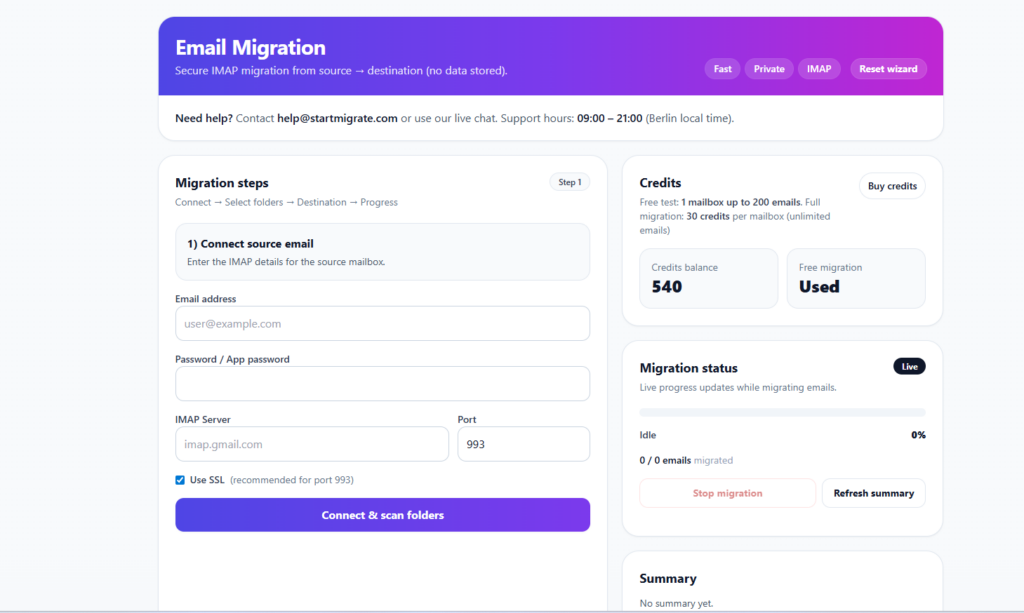
How to Use the IMAP Email Migration Tool
The IMAP Email Migration Tool makes it easy to transfer emails from one mailbox to another. Whether you want to migrate a single mailbox or multiple mailboxes at once, this tool helps move emails safely while keeping the original folder structure.
This guide explains how the tool works and how you can use it for both single and multiple mailbox migrations.
What the Tool Does
The migration tool connects to two email accounts using IMAP:
- Source mailbox – the email account where your emails currently exist.
- Destination mailbox – the email account where your emails will be copied.
The tool reads all selected folders from the source account and copies the emails into the destination account. During the migration process, the original email structure is preserved, including folders and unread/read status.
The migration runs in real time and displays progress so you can see exactly how many emails have been migrated.
Single Mailbox Migration
Migrating a single mailbox is simple.
Step 1 – Enter Source Account
Enter the login details of the source mailbox:
- Email address
- Password
- IMAP server
- Port
- SSL option (if required)
Step 2 – Scan Mailboxes
Click Scan to connect to the source mailbox.
The tool will list all folders available in the account.
Step 3 – Select Folders
Choose the folders you want to migrate.
For example:
- Inbox
- Sent
- Drafts
- Custom folders
Only the folders you select will be migrated.
Step 4 – Enter Destination Account
Enter the destination mailbox credentials.
Step 5 – Start Migration
Click Start Migration.
The system will begin copying emails from the source mailbox to the destination mailbox. You will see:
- Progress percentage
- Number of emails migrated
- Migration status (Running, Completed)
Multiple Mailbox Migration
The tool also supports multiple mailbox migration, allowing you to migrate up to 20 mailboxes at the same time.
This is especially useful for:
- Company email migrations
- Hosting provider changes
- Google Workspace or Office 365 migrations
- Bulk email transfers
How It Works
Each source mailbox is paired with a specific destination mailbox. This means:
source1@example.com  →  destination1@example.com
source2@example.com  →  destination2@example.com
source3@example.com  →  destination3@example.com
Folders and emails from each source mailbox will only be migrated to its corresponding destination mailbox.
Enter Multiple Destination Accounts
In the Destination accounts list, enter accounts using the following format:
destination_email|password
destination_email|password
destination_email|password
Example:
user1@example.com|password1
user2@example.com|password2
user3@example.com|password3
The order must match the source mailboxes.
Live Migration Status
While the migration is running, the tool displays a live progress status including:
- Migration percentage
- Number of emails migrated
- Active mailbox
- Queue status for remaining mailboxes
Each mailbox migration runs sequentially. Once one mailbox is completed, the system automatically starts migrating the next one.
Migration Summary
After migration completes, the summary section will show:
- Each mailbox migrated
- Migration status
- Completion percentage
You can also download the migration log for detailed activity information.
Key Features
✔ Supports single and multiple mailbox migration
✔ Migrates up to 20 mailboxes in one task
✔ Preserves folders and email structure
✔ Keeps read and unread status
✔ Real-time progress tracking
✔ Migration logs available for download
Final Notes
The IMAP Migration Tool is designed to make email transfers simple and reliable. By supporting multiple mailboxes and real-time progress tracking, it provides a powerful solution for both individual users and organizations managing large email migrations.